




























WooCommerce lets you attach only one image to a variation. The plugin adds a gallery of extra images to every variation. When a customer selects the variation, the slider shows that set of images.
Add the images
- Go to Products and then All Products.
- Edit the variable product.
- In the Product data box, open the Variations tab.
- Click the arrow to open the variation you want to edit.
- Find Additional Images and click Add Images.
- Choose the images from the Media Library and confirm.
- Click Save changes in the Product data box and then Update on the product.
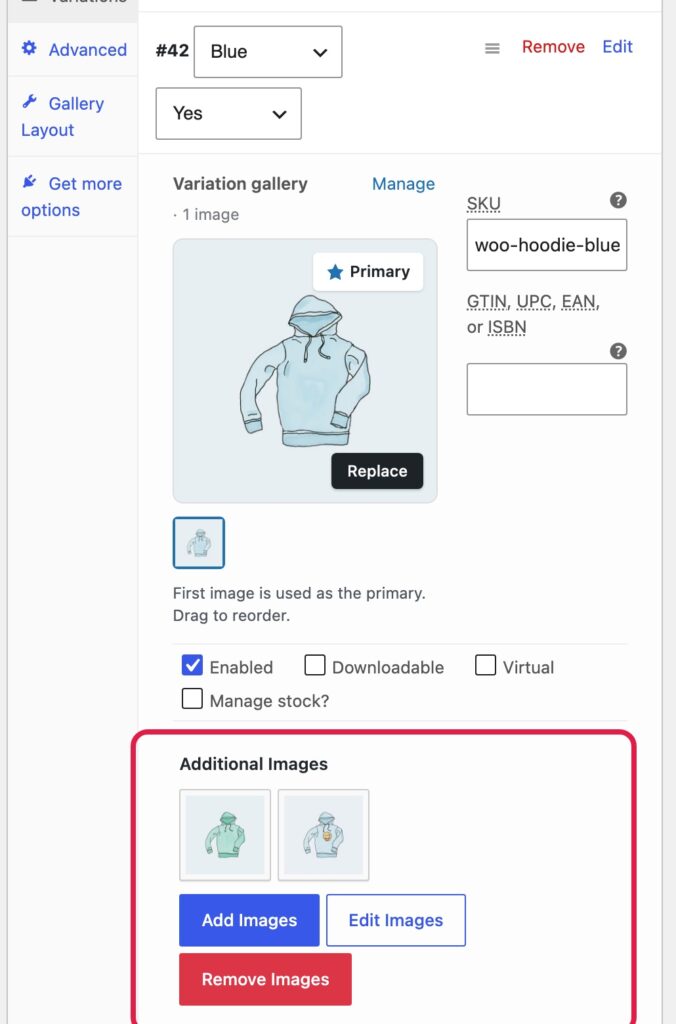
Change or remove images
Use Edit Images to add more or change the order, and Remove Images to clear the set.
What customers see
When the customer picks a colour, size or style, the gallery loads the additional images of that variation. You can choose when this happens in “How Variation Images Change the Gallery”.
Tips
- Use images of the same size so the slider does not jump.
- Give every image a clear file name and alt text.