




























Use import and export to move your gallery settings to another site, or to keep a backup before you try something new.
Export your settings
- Go to TechBella Gallery and then Gallery Settings.
- Open Import / Export.
- Under Export settings, copy the code, or click the button to download it as a file.
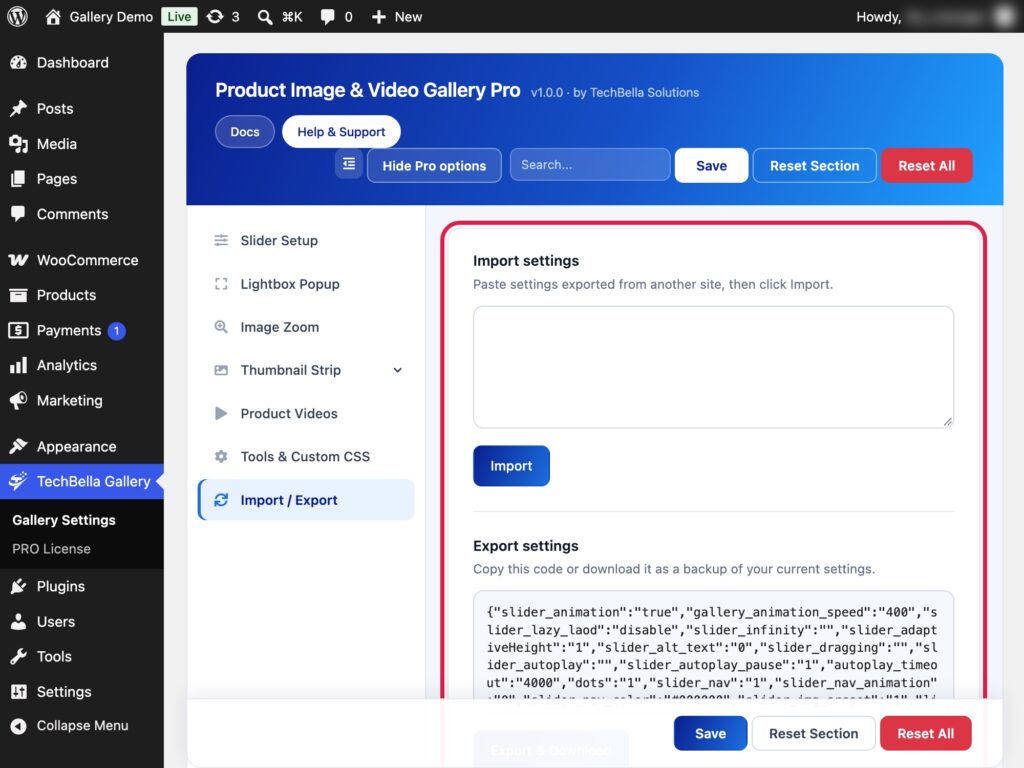
Import settings on another site
- Open Import / Export on the other site.
- Paste the exported code into Import settings.
- Click Import.
The settings of the second site now match the first one.
Tips
- Export before you update the plugin or change many settings, so you can go back.
- Use the same plugin version on both sites. Pro settings only work on a site with the Pro plugin and an active license.
- Image sizes and other site-specific choices are included, so check Main Image Size and Thumbnail Image Size after you import.