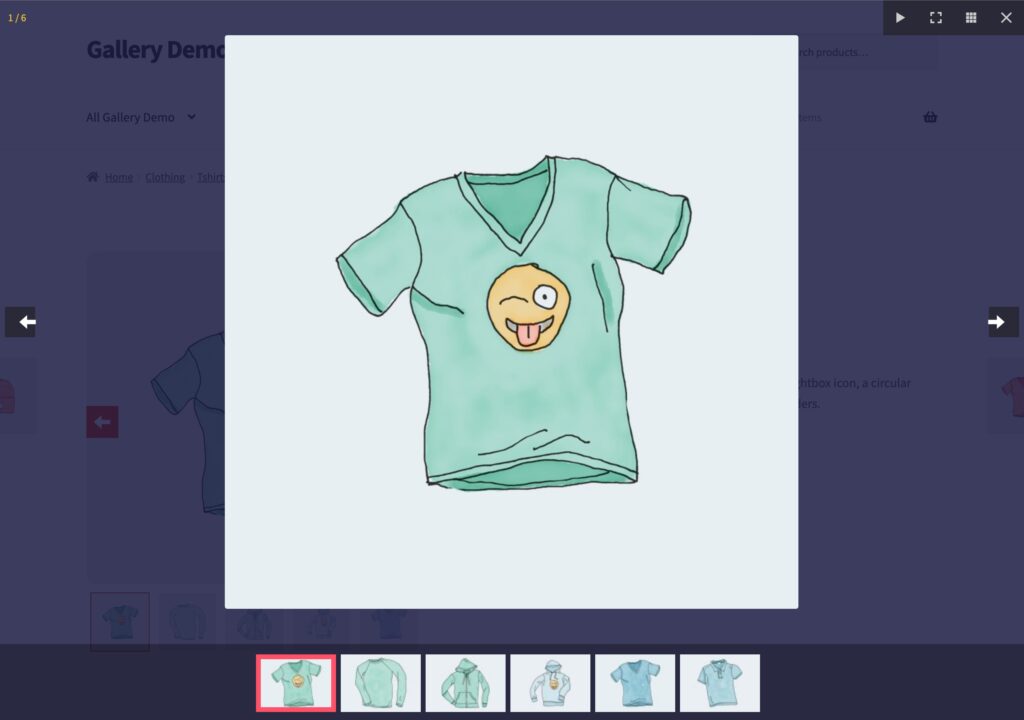
The lightbox opens a product image in fullscreen so customers can look at it closely.
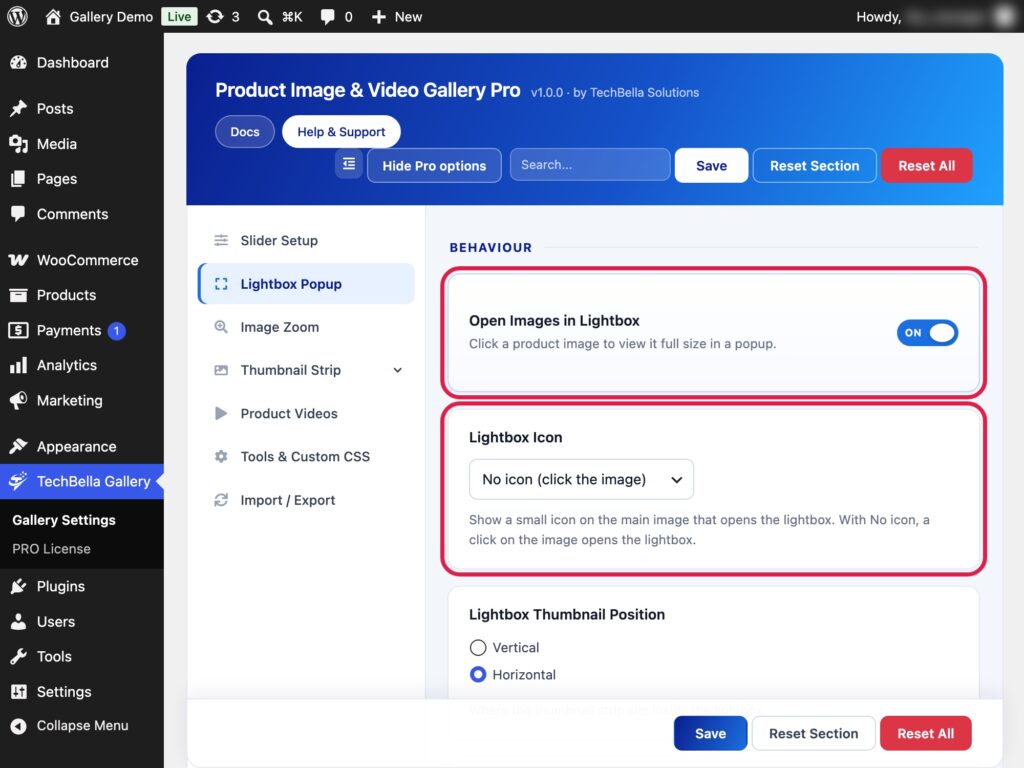
Turn the lightbox on or off
- Go to TechBella Gallery and then Gallery Settings.
- Open Lightbox Popup.
- Switch Open Images in Lightbox on or off and save.
With the lightbox on, customers can open the large image in the lightbox.
Change how it looks
- Lightbox Background and Lightbox Text Color.
- Show Image Counter to show the number of the image.
- Lightbox Icon Color and Lightbox Icon Background for the small icon on the main image (see the Pro options below).
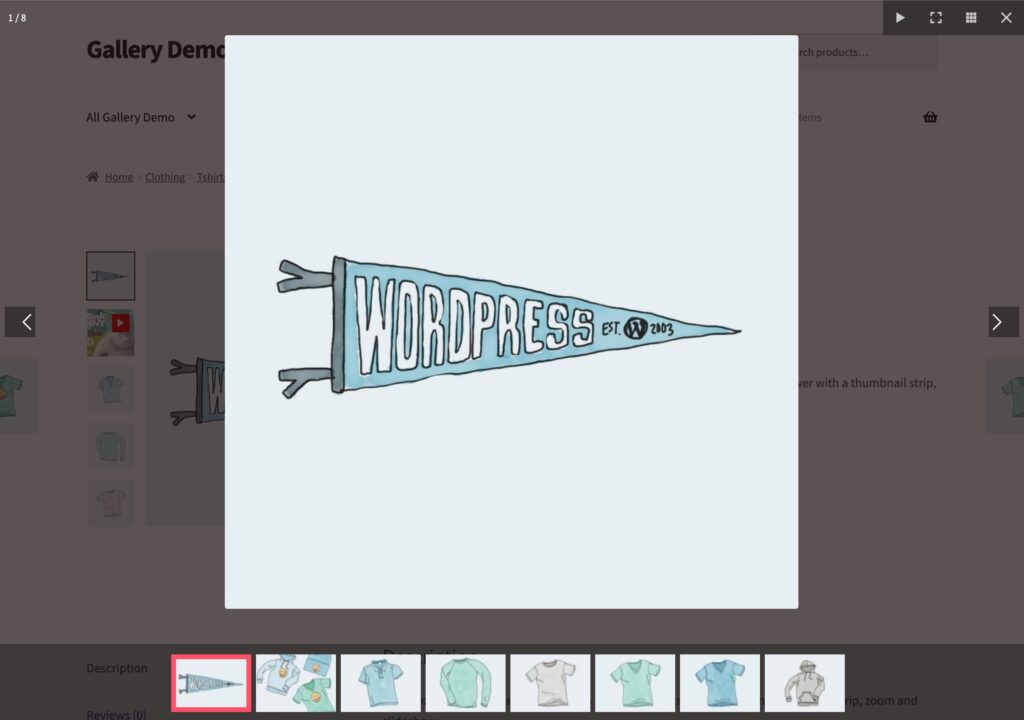
Pro options
- Lightbox Icon. Show a small icon in the corner of the main image that opens the lightbox. Choose Expand, Corners, Picture, Magnifier or Plus. With No icon, a click on the image opens the lightbox.
- Lightbox Thumbnail Position. Show the thumbnails vertically or horizontally.
- Show Lightbox Thumbnails on Open. Show the thumbnails as soon as the lightbox opens.
- Lightbox Open / Close Effect and Lightbox Slide Effect for opening, closing and moving between images. Choose from fade, zoom, slide, circular, tube, rotate or none.
- Thumbnail Click Opens Lightbox in Thumbnail Strip. A click on a thumbnail opens the lightbox.