




























Pro feature. This option is available in the Pro version of the plugin.
Pro lets you show product videos in the same slider as your photos.
Add a video to an image
- Open the Media Library and click the image that should open the video.
- Find the Product video URL field.
- Paste the link of a YouTube video, a Vimeo video or a video file on your own site (mp4, webm or ogg).
- Save the image and add it to the product gallery as usual.
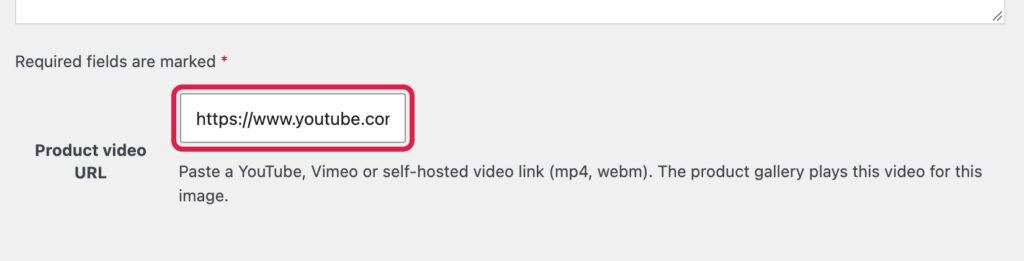
Both the full YouTube address and the short youtu.be link work. A Vimeo link such as https://vimeo.com/123456789 works too, and so does the direct address of an mp4, webm or ogg file in your Media Library.
The video belongs to the image. In the gallery, that image becomes a video slide and its thumbnail gets a small video badge. If you use the same image in another product, the video appears there too, so upload a second copy of the image when two products need different videos.
Choose how the video plays
Go to TechBella Gallery, then Gallery Settings, then Product Videos.
- Video Display. Choose Inner Gallery Section to play the video inside the gallery, or Lightbox Mode to play it in the lightbox.
- Video Height. When the video plays inside the gallery, set its minimum height in pixels.
- Video Thumbnail Image. Show the YouTube or Vimeo video thumbnail, or keep the default product thumbnail.
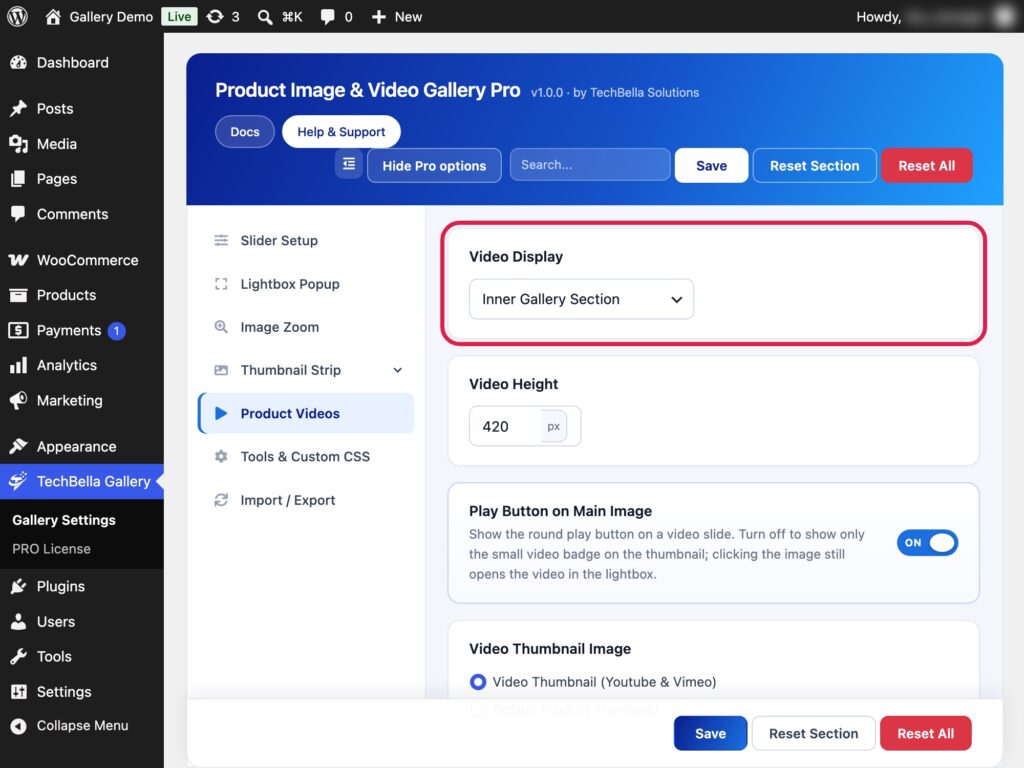
- Play Button on Main Image. Show or hide the round play button on a video slide. When it is hidden, the video still opens from the image and the thumbnail keeps its small video badge.
Change the play button
The play button is centered on the image. To change its size or color, add a rule in the Custom CSS box of Tools and Custom CSS.
.techbella-play { width: 80px; height: 80px; margin: -40px 0 0 -40px; }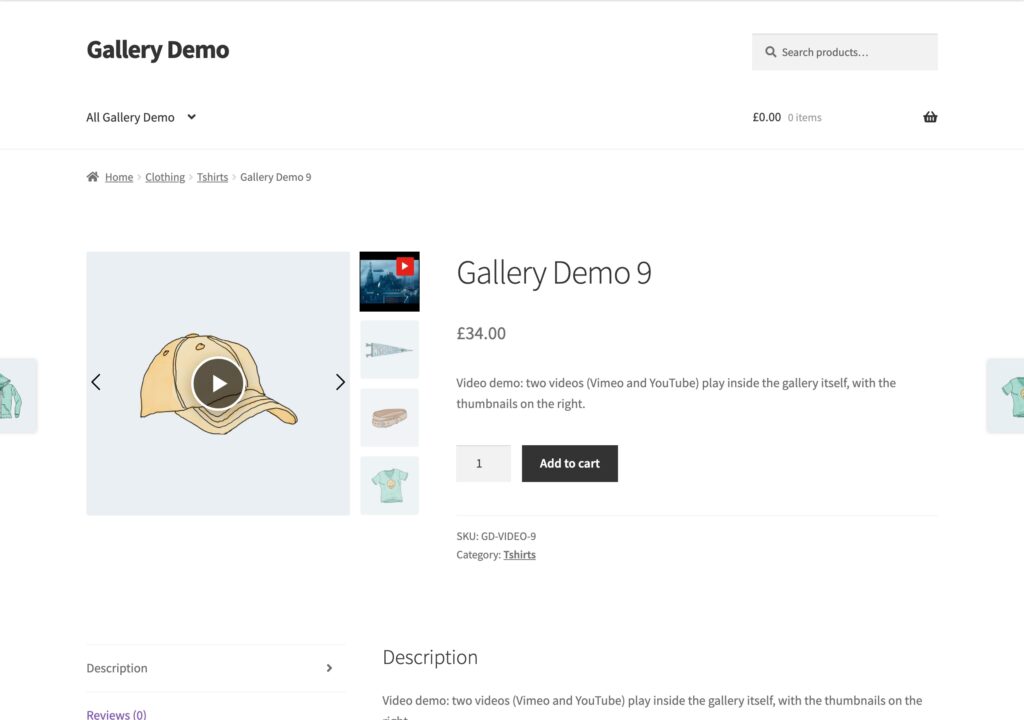
Tips
- Test the video on a phone, because some browsers handle autoplay differently.
- Keep video files short so they load quickly.
- A Vimeo video must allow embedding. If it shows a “Rights issue” message, choose a video that can be embedded.