




























The gallery uses the WooCommerce single product image size by default. If that size is small, images can look blurry, especially on large screens. A width below about 600 pixels is a common cause.
Choose larger image sizes
- Go to TechBella Gallery and then Gallery Settings.
- Open Tools and Custom CSS.
- Set Main Image Size to a larger size.
- Set Thumbnail Image Size if the thumbnails look soft.
- Save your changes and refresh a product page.
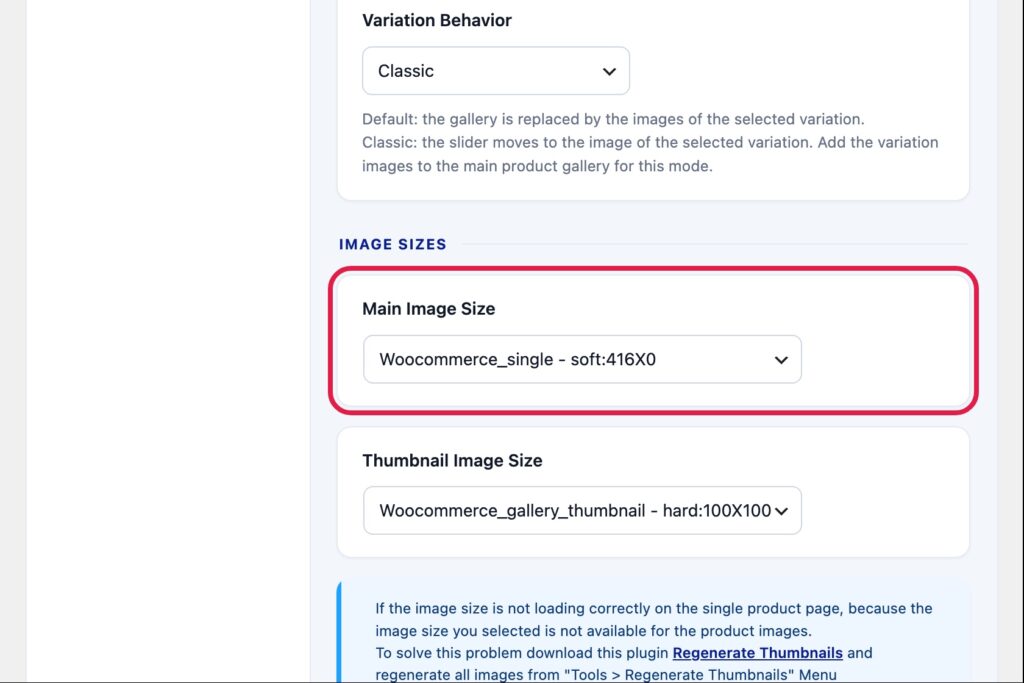
Check the original images
- Upload images that are at least as large as the size you choose.
- You can also change the single product image size in the WooCommerce settings.
- If you change image sizes in WooCommerce, regenerate the thumbnails of older images with a thumbnail plugin.
Larger images can slow a page down. In Pro, turn on lazy loading and use an image optimization plugin to keep the page fast.