




























Sandbox Mode lets you place test orders without moving real money. Always test before you accept your first live payment.
What you need
A separate Merchant ID, Access Code and Working Key for testing, issued by CCAvenue. Your live credentials will not work in the sandbox.
Turn on Sandbox Mode
- Open WooCommerce, then Settings, then Payments, then CCAvenue Gateway.
- Set Payment Mode to Sandbox Mode.
- Enter your test Merchant ID, Access Code and Working Key.
- Save your changes.

Place a test order
- Add a product to the cart and go to the checkout.
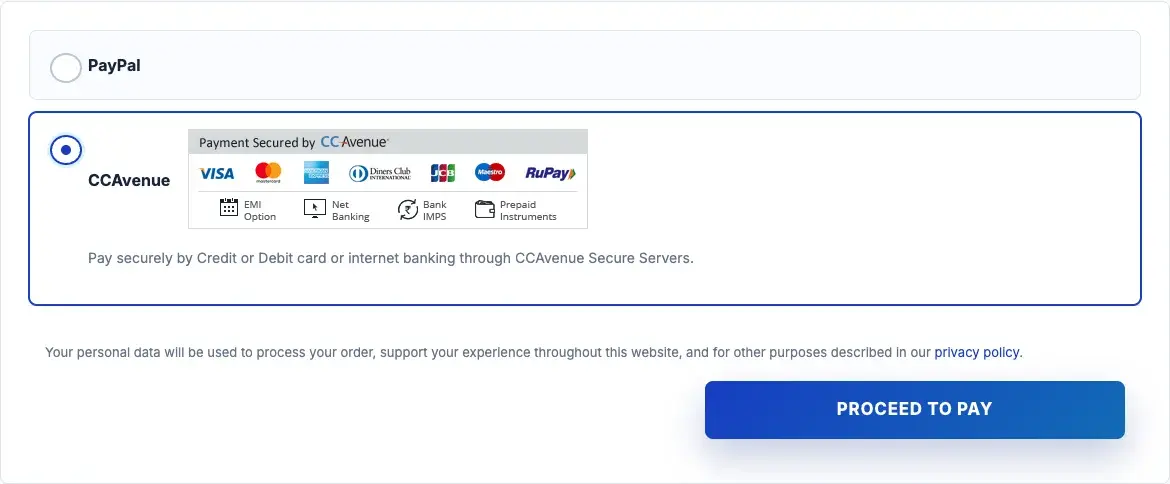
- Choose the CCAvenue payment method and complete the payment with the test details CCAvenue provides.
- Check that the WooCommerce order status changes after the payment.
India and UAE differences
- For India, the sandbox uses CCAvenue’s test gateway address.
- For UAE / Middle East, sandbox and live use the same gateway address. You switch between them by using your test or live credentials.
Go live
When testing is finished, set Payment Mode back to Live Mode and enter your live credentials. Many problems after launch come from a forgotten sandbox setting.