




























You add attachments on the edit screen of each product. Customers then see them in an Attachments tab next to Description and Reviews.
Add an attachment
- Open a product with Products and Edit.
- In the Product data box, click the Attachments tab and then Add attachment.
- Choose the Source. Pick a file from the Media Library with Select file, or paste an external link that starts with http:// or https://.
- Enter a Title. This is the name customers see.
- Click Update on the product.
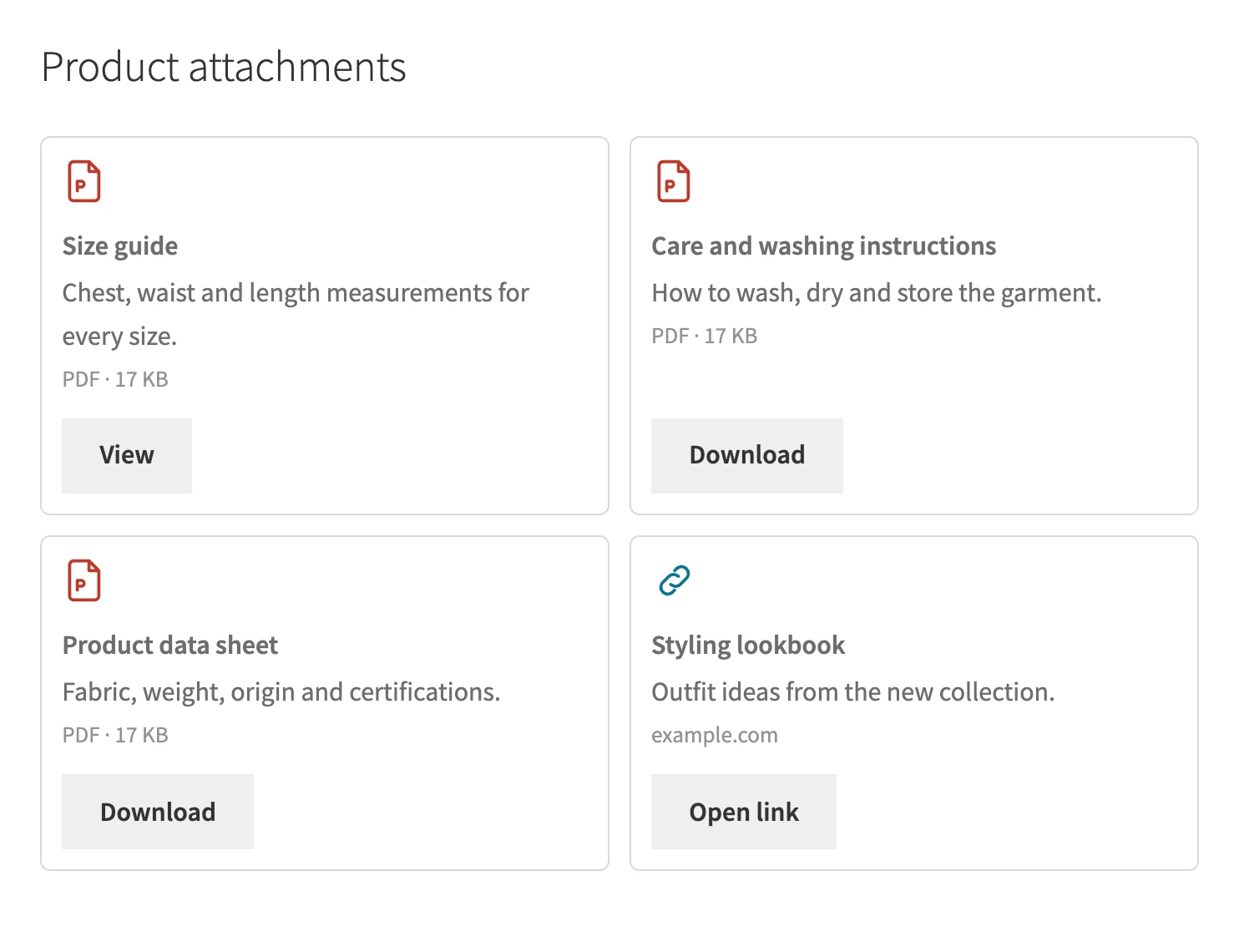
The fields of an attachment
- Description. An optional plain-text line under the title.
- Button label. Optional. It replaces the default button text for this attachment only.
- Action. View opens the file in a new tab, Download saves it to the customer device and a link opens as a normal link.
- Show on the product page. Untick it to keep the attachment saved but hide it from customers.
Order and limits
- Drag the rows to change the order, or use Move up and Move down.
- A product can have up to 50 attachments.
- Removing an attachment never deletes the file from the Media Library.
Good to know
Files from the Media Library and external links are public. Do not attach confidential files. For files that must stay private, use a Protected file instead, see “How to Protect Files With Protected Storage”.