




























The Slider Setup section controls how the slider moves.
Open the settings
Go to TechBella Gallery, then Gallery Settings, then Slider Setup.
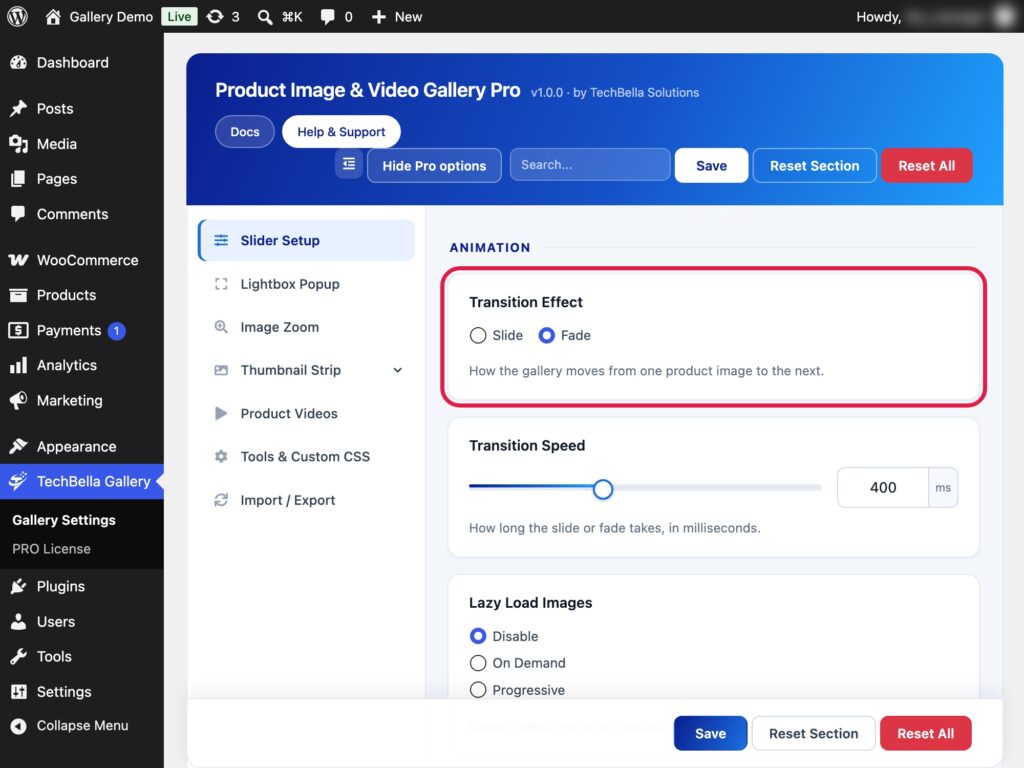
Animation
- Transition Effect. Choose Slide or Fade between images.
- Transition Speed. Set the speed in milliseconds. The default is 400.
- Loop Images. Loop from the last image back to the first.
- Auto-Fit Height. Let the slider adjust to the height of each image.
- Drag to Slide. Let customers drag the slider with the mouse.
- Responsive Images (srcset). Let the browser pick the best image size for the featured image. This is on by default.
In Pro, this section also has Lazy Load Images and Show Image Captions. See “How to Enable Lazy Loading in the Gallery” and “How to Show Image Captions in the Gallery”.
Autoplay
- Autoplay. Start the slider on its own.
- Pause on Hover. Stop autoplay while the mouse is over the image or the dots.
- Autoplay Delay. Set the time between slides in milliseconds. The default is 4000.
Arrows and dots
- Dot Indicators. Show dots under the image.
- Next / Previous Arrows. Show arrows and pick their colour with Arrow Color and their background with Arrow Background.
- Arrow Style. In Pro, choose Classic arrow, Thin chevron, Large chevron, Bold arrow, Triangle or Outline arrow. The same style is used for the arrows in the lightbox.
- Animated Arrows. In Pro, the arrows appear with a small animation when the visitor moves over the gallery.

