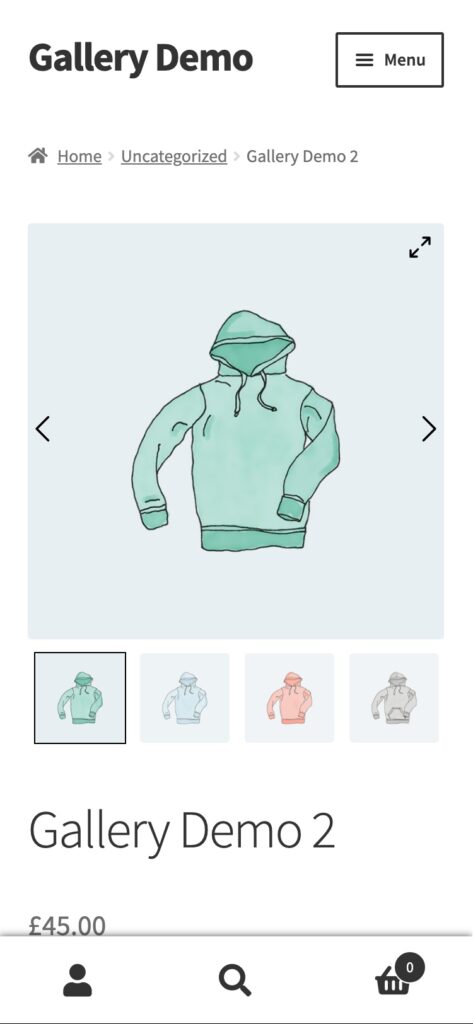
Thumbnails sit next to the main image and let customers jump to any photo. Each screen size has its own settings.
Set the thumbnails
- Go to TechBella Gallery and then Gallery Settings.
- Open Thumbnail Strip. The first tab is for desktop, and there are separate Tablet and Mobile tabs.
- Set Visible Thumbnails and Thumbnails per Scroll.
- Save your changes.
The default is four thumbnails shown and one scrolled at a time.
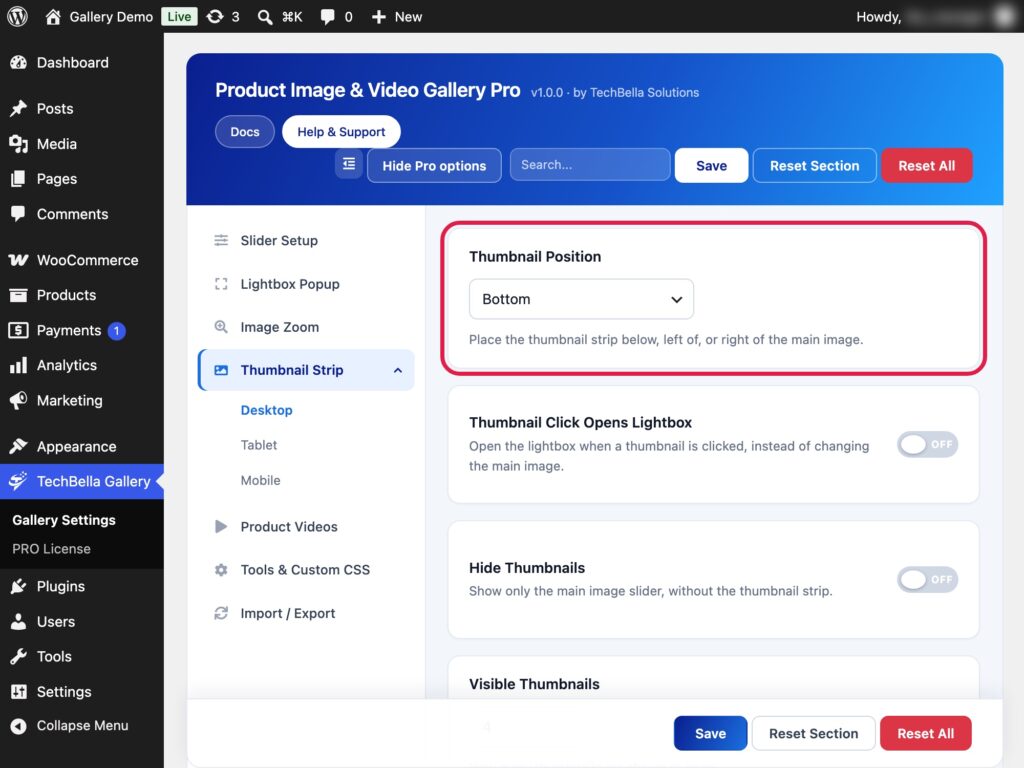
More desktop options
- Thumbnail Arrows. Show arrows to move through the thumbnails.
- Thumbnail Style. Choose the thumbnail style.
- Inactive Thumbnail Border and Active Thumbnail Border colours.
Pro options
- Thumbnail Position. Place the thumbnails at the bottom, on the left or on the right. Left and right give a vertical gallery on large screens, and phones always show the thumbnails below.
- Thumbnail Click Opens Lightbox. The main area shows the featured image and the thumbnails become links that open the lightbox with all images and videos. Use this for a lightbox-focused product page.
- Hide Thumbnails. Show only the main image slider.

On tablets and phones
On screens up to 1024 px wide the thumbnail strip moves under the main image, so the picture keeps its full width. The Tablet and Mobile tabs set how many thumbnails show on those screens.